Annotation
This option is passed in as the third argument for the screenshot function. It allows you to customize the highlighting of elements for a screenshot.
When to use annotation options
- You want to change the color and/or outline of the highlighted element.
- You want to add a label to help explain the screenshot:
- You want to customize where the label is placed
- You want to customize the color of the label
- You want to give the label a background
- You want to add an arrow to emphasize what is being highlighted
Annotation Object Properties
To style the highlight and label we expose a few properties on the annotation object. They're named similar to the Canvas 2D context, which is used to render the highlight and label.
Label Styling
The text that explains what is being highlighted.
-
text:- Type:
string - Description: The text to display for the label. This is the main content that will be rendered on the canvas. Use
\nto start a new line. - Default:
""(empty string)
- Type:
-
labelMaxWidth:- Type:
number - Description: The maximum width of the label text in pixels. Longer text wraps onto new lines between words. A single word wider than this stays on one line.
- Default:
undefined(no wrapping)
- Type:
-
textAlign:- Type:
"left" | "center" | "right" - Description: How lines of a multi-line label are aligned inside the label box.
- Default: Aligned towards the highlighted element:
"right"when the label is left of it,"left"when the label is right of it, otherwise"center".
- Type:
-
altText:- Type:
string - Description: Adds alt text to screenshots. This is ignored if using
figure. - Default:
"screenshot"
- Type:
-
figure:- Type:
boolean - Description: When true, wraps the screenshot in an HTML
<figure>tag in the generated documentation. Use this when you want semantic figure/figcaption markup instead of plain markdown images. - Default:
false
- Type:
-
caption:- Type:
string - Description: Adds a
<figcaption>element with the specified text whenfigureis true. Provides additional context or explanation for the screenshot. If not provided butfigureis true, no caption will be added. - Default:
undefined
- Type:
-
filename:- Type:
string - Description: A fixed file name for the screenshot in the generated docs, so every run writes the same file and overwrites the previous one.
.pngis added if missing. It can't contain/or\. Use a unique name per screenshot, since two screenshots with the same name overwrite each other. Don't set it inannotationDefaults, or every screenshot will share one file. Renamed or removed screenshots aren't cleaned up automatically. - Default:
undefined(named from a hash of the image, e.g.test2doc-3f2a9c1b7e4d.png)
- Type:
-
fillStyle:- Type:
string - Description: The color of the label text. Accepts any valid CSS color value, including hex codes, RGB, RGBA, HSL, or HSLA.
- Default:
rgba(0, 0, 0, 1)(black)
- Type:
-
font:- Type:
string - Description: Specifies the font size, font-weight, and family for the label text. Follows the CSS font property syntax (e.g.,
"16px Arial"). - Default:
"14px Arial"
- Type:
-
strokeStyle:- Type:
string - Description: The color of the outline around the label text. Accepts any valid CSS color value.
- Default:
rgba(0, 0, 0, 0.1)(light black)
- Type:
-
lineWidth:- Type:
number - Description: The thickness of the outline around the label text.
- Default:
2
- Type:
Label Box Styling
A box that the label's text can appear it to make the text stand out more.
-
labelBoxFillStyle:- Type:
string - Description: The fill color of the label box surrounding the annotation text. Accepts any valid CSS color value, including hex codes, RGB, RGBA, HSL, or HSLA.
- Default:
rgba(0, 0, 0, 0)(transparent)
- Type:
-
labelBoxStrokeStyle:- Type:
string - Description: The border color of the label box. Similar to
labelBoxFillStyle, this property accepts any valid CSS color value. - Default:
rgba(0, 0, 0, 0)(transparent)
- Type:
-
labelBoxLineWidth:- Type:
number - Description: The width of the border for the label box. This property determines how thick the outline of the label box will be.
- Default:
2
- Type:
-
labelBoxPadding:- Type:
number - Description: The space in pixels between the label text and the edge of the label box, on all four sides.
- Default:
4
- Type:
Highlight Box Styling
A box that is drawn around the element you wish to highlight.
-
highlightFillStyle:- Type:
string - Description: The fill color of the highlight box. Accepts any valid CSS color value. Make sure to add some transparency (
rgba(),hsla(), or 8-digit hex format like#FF000080) else it will block the element entirely. - Default:
rgba(255, 165, 0, 0.3)(orange with 30% transparency)
- Type:
-
highlightStrokeStyle:- Type:
string - Description: The border color of the highlight box. Accepts any valid CSS color value.
- Default:
rgba(255, 165, 0, 1)(solid orange)
- Type:
-
highlightLineWidth:- Type:
number - Description: The width of the border for the highlight box.
- Default:
2
- Type:
Positioning
The location of where the label is rendered.
position:- Type:
"above" | "below" | "left" | "right" | number - Description: Determines the position of the label text relative to the highlighted element. Uses clock convention where 0° = top, 90° = right, etc. If a number is provided, it positions the label at that degree angle. Defaults to automatically positioning towards the screen center.
- Default: Automatically positions label towards the center of the screen.
- Type:
Labels are always kept inside the screenshot and off the highlighted element. If the label doesn't fit on the preferred side, it's slid back inside the screenshot along that side. If it would still cover the element, Test2Doc tries the opposite side, then the two sides next to it. If no side works, the label is kept on the preferred side, inside the screenshot.
Labels can still cover other parts of the page, like a sidebar. Test2Doc can't tell which parts of the page matter, so set position yourself in those cases.
Arrow
Used to point from the label to the element being highlighted.
-
showArrow:- Type:
boolean - Description: Whether to display an arrow pointing from the label to the highlighted element. When enabled, creates a visual connection between the annotation text and the target element.
- Default:
false
- Type:
-
arrowStrokeStyle:- Type:
string - Description: The color of the arrow line and arrowhead. Accepts any valid CSS color value, including hex codes, RGB, RGBA, HSL, or HSLA.
- Default:
rgba(255, 0, 0, 1)(red)
- Type:
-
arrowLineWidth:- Type:
number - Description: The thickness of the arrow line. The arrowhead size automatically scales based on this value.
- Default:
2
- Type:
Example test
Here's a comprehensive example showing how to use multiple annotation properties together.
test.describe(withDocMeta("describe block"), async () => {
    test("test block", async ({ page }, testInfo) => {
      ...
      test.step("step block", async () => {
        await page.goto("http://localhost:5173/")
        await screenshot(
          testInfo,
          page.getByRole("img", { name: "Browsers (Chromium, Firefox, WebKit)" }),
          { annotation: {
            text: "Supported Browsers",
            fillStyle: "rgba(255, 255, 255, 1)",
            font: "bold 16px Helvetica",
            strokeStyle: "rgba(0, 0, 0, 0.5)",
            lineWidth: 4,
            labelBoxFillStyle: "rgba(0, 120, 120, 0.3)",
            labelBoxStrokeStyle: "rgba(0, 255, 0, 1)",
            labelBoxLineWidth: 2,
            highlightFillStyle: "rgba(255, 165, 0, 0.3)",
            highlightStrokeStyle: "#FFA500",
            highlightLineWidth: 2,
            position: "above",
            showArrow: true,
            arrowStrokeStyle: "rgba(255, 0, 0, 0.8)",
            arrowLineWidth: 3
          }}
        );
      })
    })
  })
Example screenshot
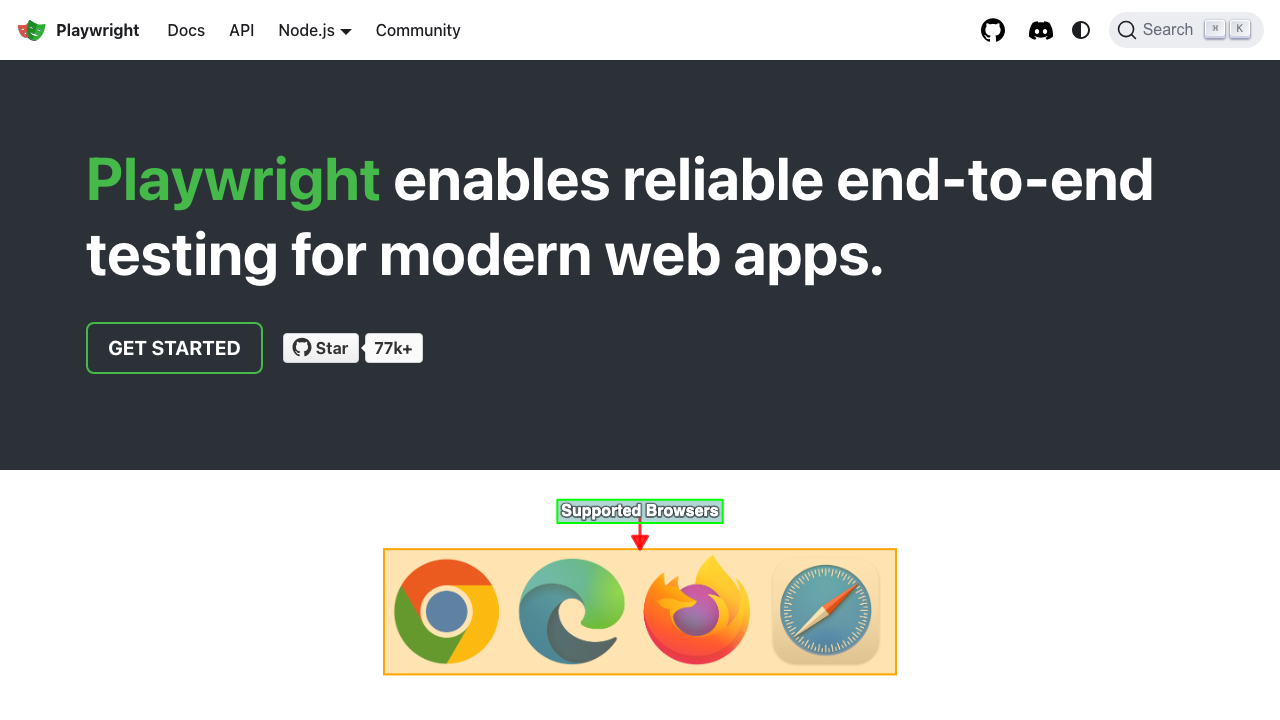
Example of a multi-line label
Longer labels can be split onto multiple lines with \n, or wrapped automatically with labelMaxWidth. Lines are aligned towards the highlighted element unless you set textAlign.
await screenshot(testInfo, page.getByRole("button", { name: "Submit" }), {
  annotation: {
    text: "Submits the form.\nDisabled until every required field is filled in.",
    labelMaxWidth: 240,
    labelBoxPadding: 8,
    labelBoxFillStyle: "rgba(0, 123, 255, 0.6)",
    fillStyle: "white",
    position: "left",
    showArrow: true,
  },
})
Here the label is to the left of the button, so its lines are right-aligned, next to the arrow.
Example with figure and caption
When you want to provide additional context in the documentation, combine visual annotations with semantic HTML:
test.step("Login form validation", async () => {
  await screenshot(
    testInfo,
    page.getByRole("textbox", { name: "Email" }),
    { annotation: {
      text: "Email Field",
      position: "right",
      showArrow: true,
      figure: true,
      caption: "The email input field with real-time validation"
    }}
  );
});
This generates:
<figure>

<figcaption>The email input field with real-time validation</figcaption>
</figure>
Example of position by number
If position is set to a number, it will render is a clockwise rotation around the highlighted element.
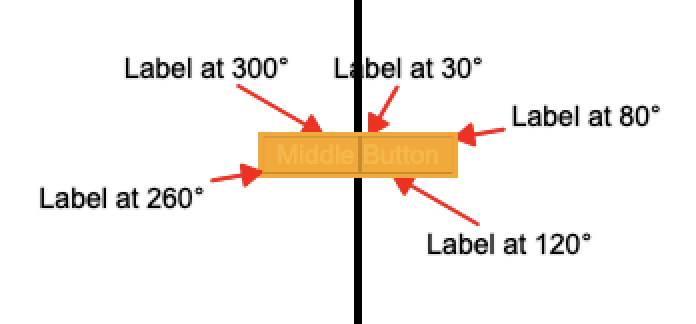
Configure Annotation Defaults
If you want to set default values for the annotation object you can do so in your playwright-test2doc.config.ts. Just set the annotationDefaults object in the test2doc playwright global options. These defaults will be applied to all screenshots, but can still be overridden on a per-screenshot basis.
import { defineConfig, ... } from "@playwright/test"
import "@test2doc/playwright/types"" // Add this import to add test2doc to the global options

export default defineConfig({
  ...
  use: {
    ...
    test2doc: {
      annotationDefaults: {
        fillStyle: "white",
        labelBoxFillStyle: "rgba(0, 123, 255, 0.6)",
        font: "bold 16px Helvetica, Arial, sans-serif",
        highlightStrokeStyle: "rgba(0, 123, 255, 1)",
        highlightFillStyle: "rgba(0, 0, 0, 0)",
        highlightLineWidth: 3,
        showArrow: true,
        arrowStrokeStyle: "rgba(0, 123, 255, 1)",
      },
    },
    ...
  },
  ...
})
Best Practices
- Use transparency in
highlightFillStyleto avoid obscuring elements - Keep labels concise and descriptive
- Test annotations on different screen sizes to ensure readability
- Use consistent colors across your project for better branding
Troubleshooting
- Labels not appearing: Check that
textis not empty - Label is on a different side than
position: The label didn't fit on that side, so it was moved. See Positioning - Label is too wide: Set
labelMaxWidthto wrap it onto multiple lines - Colors not applying: Ensure valid CSS color values (e.g., hex, rgba)
- Arrows misaligned: Verify
positionand element visibility